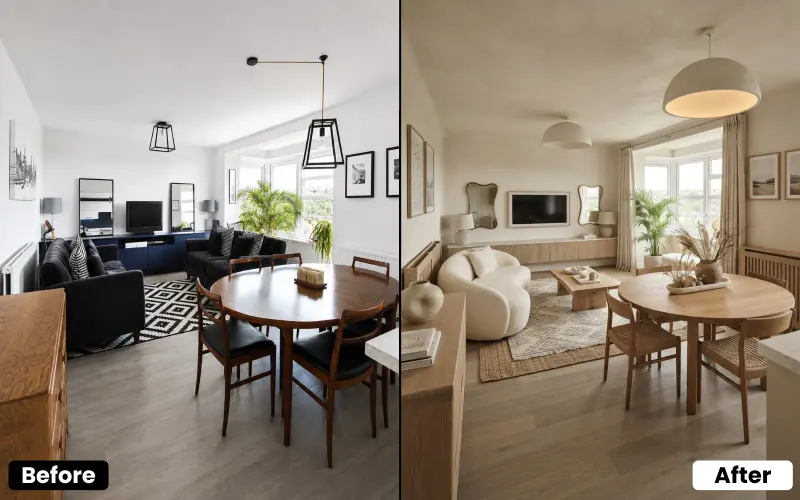
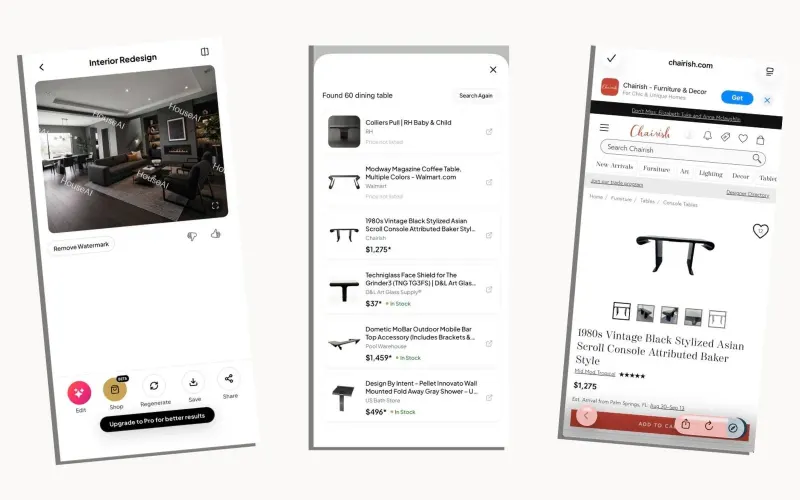
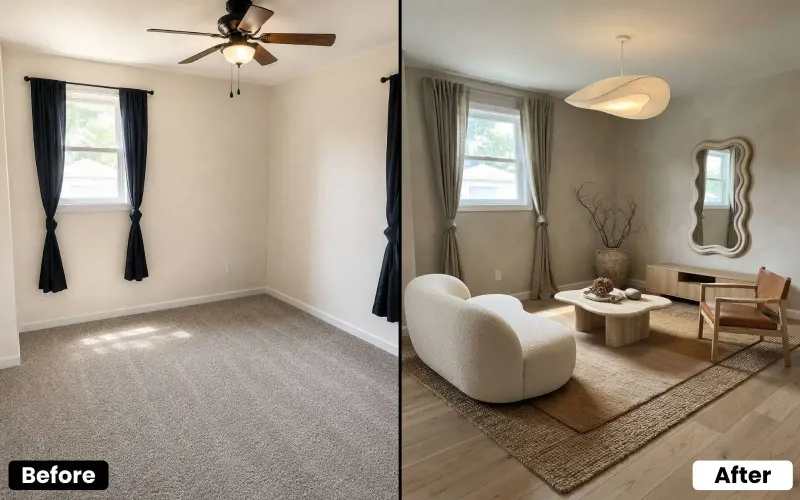
To redesign a room with AI: take a clear, well-lit photo of the whole room, open an AI design tool like House AI, upload the photo, choose the room type and a style, and generate, you'll have a photorealistic redesign in about 15 seconds. From there you can compare multiple styles, refine the result, and even shop the furniture in the render. No design skills, no software, and you can start free.
Redesigning a room used to mean hiring a designer, or squinting at Pinterest and hoping it translated to your actual space. Not anymore. In 2026 you can take a photo of any room and watch AI reimagine it in seconds, new furniture, colors, layout and style, all mapped onto your real walls and windows. It's genuinely that easy, and this guide walks you through the whole thing in eight simple steps. I use House AI in the examples because it's what I know best and it's free to start, but the steps work with most good AI design tools.
What You'll Need
Almost nothing. You need a phone or computer, a photo of the room you want to redesign, and an AI design tool, that's it. No measurements, no floor plans, no design experience. If you can take a photo and tap a button, you can do this. Most tools, House AI included, offer 3 free designs a day so you can try the whole process without paying.
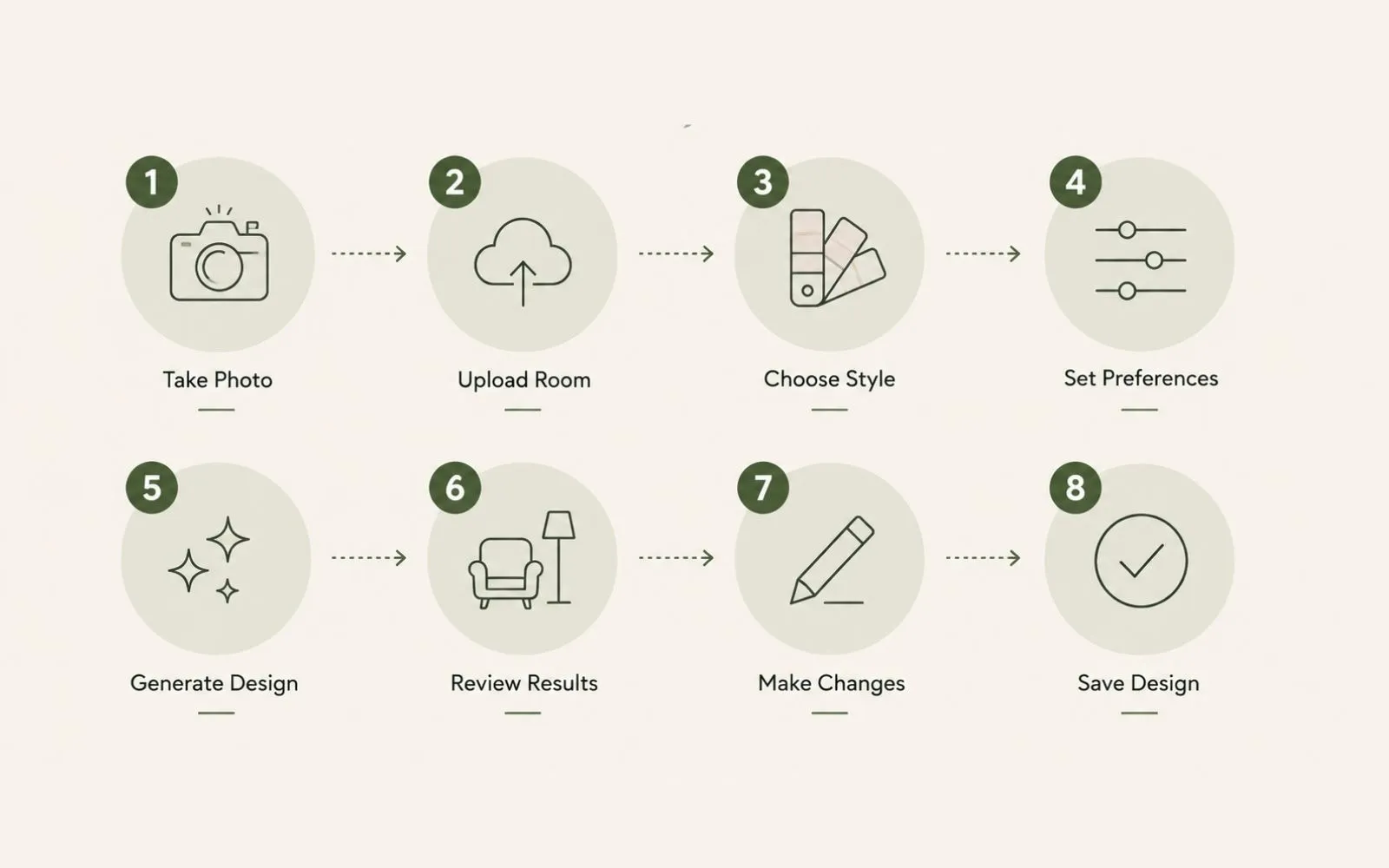
How to Redesign a Room With AI: 8 Steps
Step 1: Take a Clear Photo of Your Room
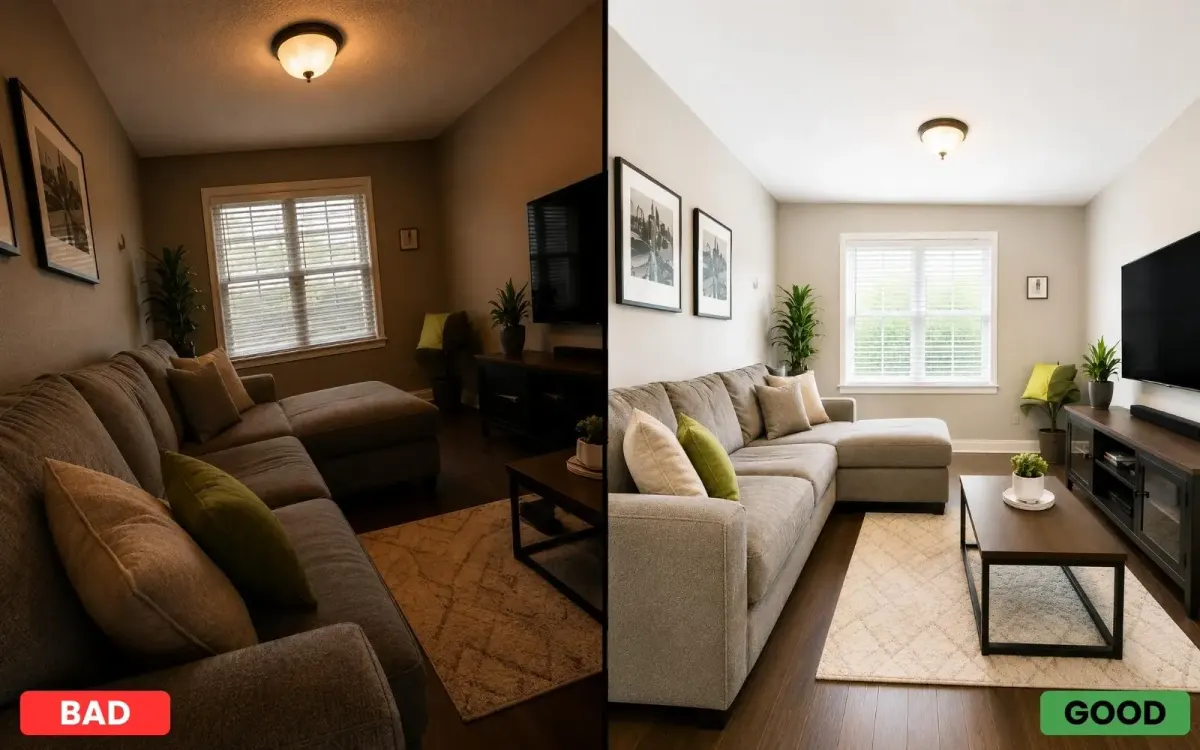
Stand in a corner or doorway and capture as much of the room as you can in one shot. Good, even lighting matters most, open the curtains and shoot during the day if you can, so the AI can clearly see the walls, floor and existing layout. Keep the camera level and avoid extreme angles. A clean, well-lit photo is the single biggest factor in getting a great result, so it's worth taking a few and picking the best.
Step 2: Choose the Right AI Design Tool
Pick a tool that matches what you want. For fast, photorealistic redesigns of a real room, House AI is a great starting point, it handles interiors, exteriors and gardens, offers 300+ styles, and returns results in about 15 seconds. Whatever you choose, look for one that works from a photo (not a blank 3D canvas) and has a free tier so you can experiment before committing.
Step 3: Upload Your Photo
Open the tool and upload the photo you took. In House AI it's a single tap, no account gymnastics or file conversions. The tool reads your room's actual dimensions, perspective and lighting from the image, which is what lets the redesign look like your real space rather than a generic stock room.
Step 4: Pick Your Room Type and Style
Tell the tool what the room is (living room, bedroom, kitchen and so on) so it furnishes it sensibly, then choose a style, Scandinavian, Japandi, Modern, Industrial, Coastal, Bohemian, whatever fits your taste. This is the fun part: you're not committing to anything, so pick the look you've always been curious about. If you're unsure, start with a couple of styles you can compare in a moment.
Step 5: Generate Your Redesign
Hit generate and wait a few seconds. House AI returns a photorealistic redesign of your exact room in about 15 seconds, at up to 2K HD. This is the moment it clicks, you see your own space, transformed, keeping the real windows, doors and proportions but with a whole new look. Take it in before you decide what to tweak.
Step 6: Compare Multiple Styles
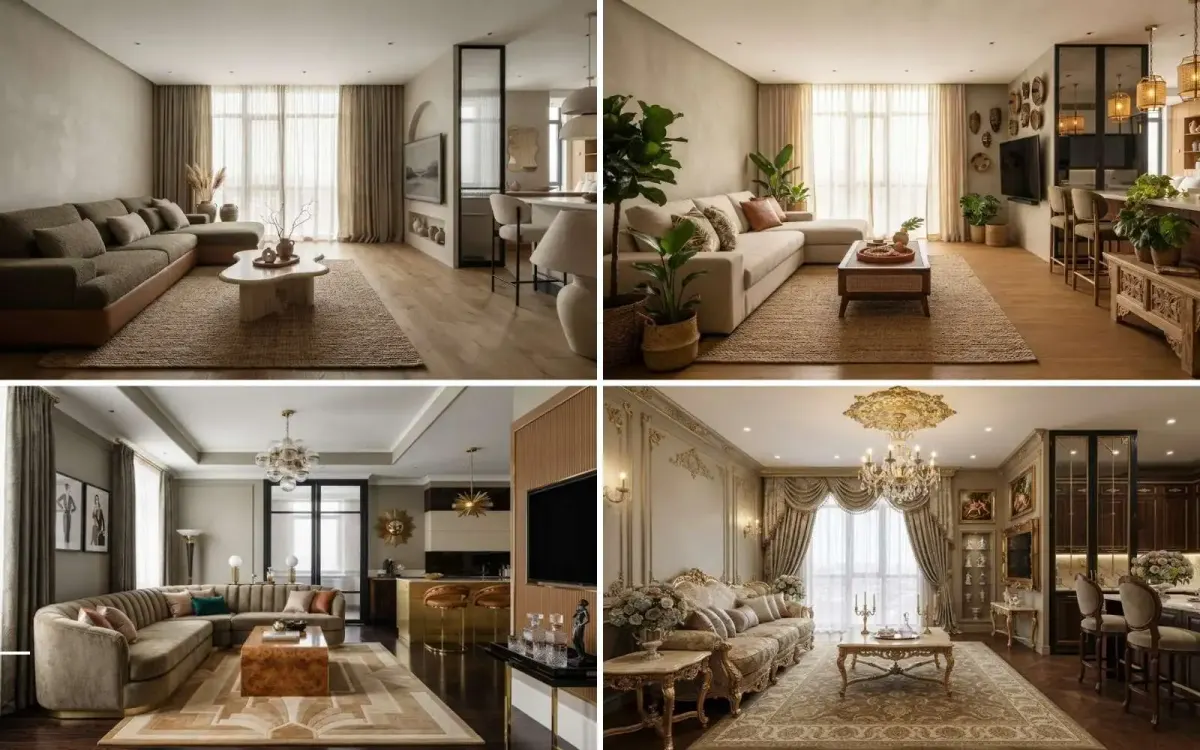
Don't settle on the first result. Run the same room through several styles and put them side by side, seeing one living room as modern, traditional, and boho at once makes the right choice obvious in a way a single render never could. It's also the best way to discover a look you didn't expect to love.
Step 7: Refine and Iterate
Found a direction you like? Generate a few more variations to fine-tune it, a different sofa, warmer tones, a lighter floor. Because each render takes seconds and the free tier resets daily, you can iterate freely until the room feels exactly right. Think of it as trying on outfits: quick, low-stakes, and worth doing a few times.
Step 8: Shop the Look, Save and Share
Once you love a design, act on it. With House AI's Shop from Image feature you can find real, in-stock products that match the furniture in your render, turning inspiration into an actual shopping list. Save your favorite renders, share them with a partner, a contractor or an interior designer, and use them as the blueprint for the real thing.
Tips for the Best AI Redesign Results
Light your photo well, capture the whole room, and keep the shot straight, that alone will lift your results dramatically. Try more styles than you think you need, since the surprises are often the winners. And treat the first render as a starting point, not the final answer: the magic is in the iteration, and it costs you nothing but a few seconds.
FAQ: Redesigning a Room With AI
How do I redesign a room with AI?
Take a clear, well-lit photo of the room, upload it to an AI design tool like House AI, choose the room type and a style, and generate. In about 15 seconds you'll get a photorealistic redesign of your actual room. You can then compare styles, refine the result, and shop the look, no design skills required.
Is redesigning a room with AI free?
It can be. House AI offers 3 free designs a day with no credit card, so you can photograph a room and see it redesigned without paying. Paid plans simply let you generate more often once you're iterating a lot.
Do I need any design skills or software?
None at all. If you can take a photo and tap a button, you can redesign a room with AI. There's nothing to install and no measurements to take, the tool reads your room from the photo and does the design work for you.
How long does an AI room redesign take?
Seconds. House AI returns a redesign in about 15 seconds per generation, so the slowest part of the whole process is taking a good photo. You can try several styles in just a few minutes.
Will the redesign match my actual room?
Yes, that's the point. AI redesign tools work from your photo, so they keep your real walls, windows, doors and proportions while changing the furniture, colors and style. The better your photo (clear and well-lit), the more accurate the result.
Can I buy the furniture from my AI design?
With House AI, yes. Its Shop from Image feature detects the furniture in your render and finds real, in-stock products with prices and links, so you can turn the design into an actual shopping list instead of just inspiration.
What's the best AI tool to redesign a room?
House AI is a great all-round choice, it's fast, works from a photo, offers 300+ styles across interiors, exteriors and gardens, has 3 free designs a day, and lets you shop the look. If you want to compare options, tools like Remodel AI and RoomGPT are worth a look too.
The Bottom Line
Redesigning a room with AI is genuinely as simple as photo, upload, style, generate, and then playing until it's perfect. You don't need money, skills, or software to see your space completely reimagined; you just need a few minutes and a bit of curiosity. Snap a photo of the room that's been bugging you, run it through House AI for free, and watch it become the room you've been picturing. The hardest part will be deciding which style you love most.
Design any room, shop or space with House AI in about 15 seconds. 3 free designs a day.
Get Started Today